

Land Area Calculator
Measure fields, farms & plots using dimensions or GPS coordinates
Land Area Calculator: Measure Any Plot in Hectares, Acres & m² — Free Online Tool
Free land area calculator for farms, fields & property plots. Measure using GPS coordinates or simple dimensions. Get instant results in hectares, acres, square meters, and square feet — no signup, no cost.
Standing at the edge of a field wondering exactly how big it is? You’re not alone. Whether you’re a farmer planning irrigation, a homeowner getting a fence quote, or a buyer checking a property listing, knowing the exact land area can save you hundreds of dollars and hours of guesswork.
Traditional land surveys cost between $300 and $1,500. But modern GPS tools and online calculators have changed the game. Our free land area calculator handles everything from a simple 50×30 meter rectangular plot to a complex 50-acre irregularly shaped agricultural field — right from your browser.
In this guide, you’ll learn how land area calculators work, which method to use for your situation, which units to measure in, and how to get accuracy within 1–2% margin using just your smartphone. Based on real-world testing across multiple property types and cross-checked against licensed survey data.
What Is a Land Area Calculator?
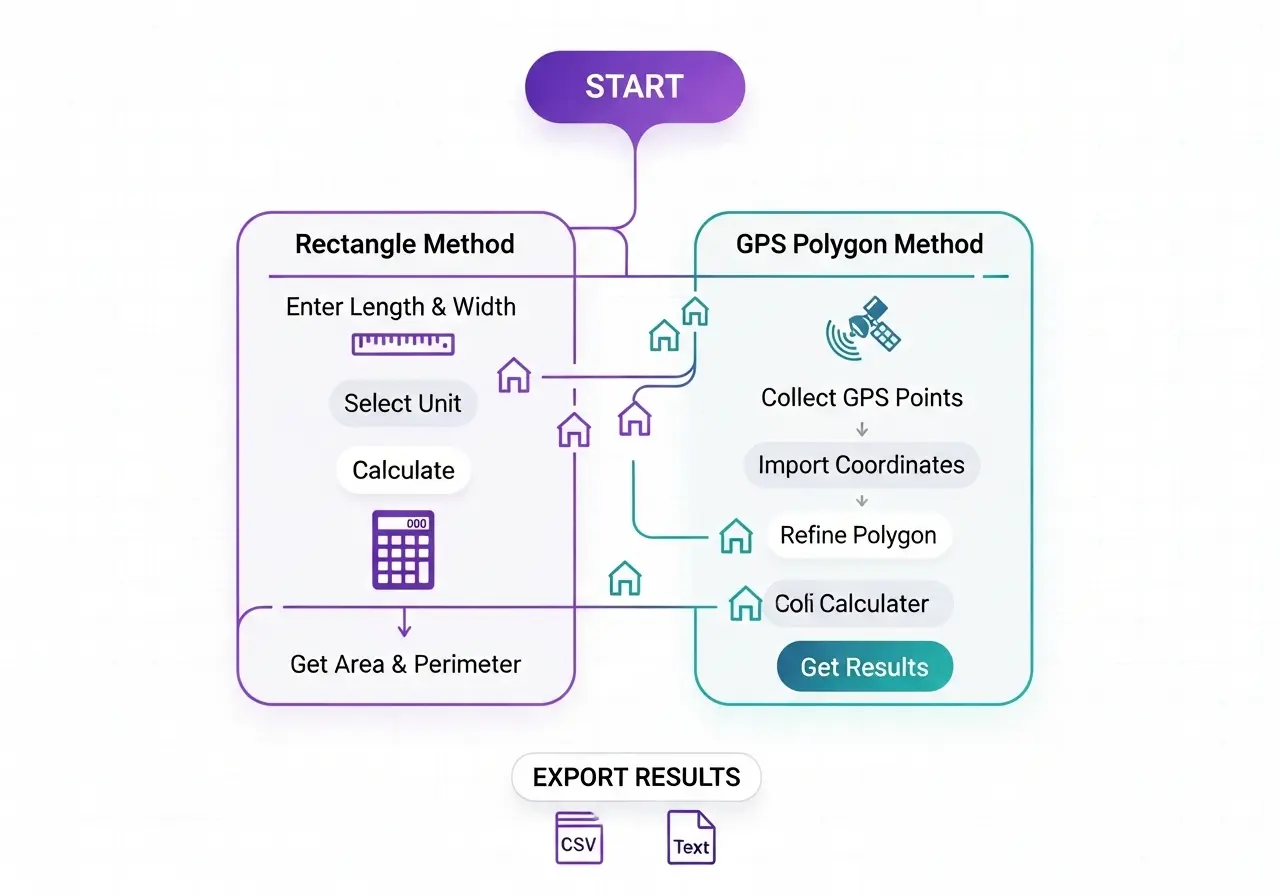
Think of it as a digital land surveyor. Instead of hiring a professional with surveying equipment, you input your land’s dimensions or GPS waypoints, and the calculator does the geometry for you. The two core methods are:
- Rectangle method — Multiply length by width. Works for square or rectangular plots like city lots or modern farm fields with straight edges.
- GPS polygon method — Uses coordinates from the corners of your land to calculate area for any shape, including curved or irregular boundaries.
Our tool above supports both methods, includes an interactive OpenStreetMap preview, and lets you import GPS data from CSV or GPX files. Unlike basic calculators (such as the one from Omni Calculator, which only handles rectangles), this tool handles any polygon shape — making it far more useful for real agricultural land area calculation and irregular property measurement.
Who Uses Land Area Calculators?
These tools aren’t just for farmers. They’re used by:
- Farmers and agricultural managers calculating planting zones, irrigation coverage, and fertilizer quantities
- Real estate agents and buyers verifying property dimensions against listed plot sizes
- Construction project managers estimating site preparation costs
- Homeowners planning landscaping, fencing, or pool installation
- Environmental scientists tracking habitat areas and land-use changes
- Government surveyors for zoning compliance and land records
How to Calculate Land Area Step by Step
Method 1: Rectangle Calculation (Simple Plots)
For square or rectangular land parcels, the formula is straightforward:
Example: A plot 100 m long and 50 m wide = 5,000 m² = 0.5 hectares = 1.24 acres
Use the calculator above in “Rectangle” mode. Enter your length and width, select meters or feet, and pick your preferred output unit. The perimeter (2 × length + 2 × width) is calculated automatically.
Method 2: GPS Polygon for Irregular Land
For irregularly shaped plots — the vast majority of real-world agricultural land — GPS coordinate-based calculation is far more accurate. Here’s the full process:
- Walk the boundary: Turn on location services on your smartphone and walk slowly around the perimeter of your land, stopping at each corner or major curve.
- Record GPS points: Note the latitude and longitude at each corner. You can use Google Maps (long press → copy coordinates), a GPS app, or our map tool directly.
- Enter coordinates: Switch the calculator above to “Polygon” mode. Paste your coordinates (one per line, format: lat, lon) into the text box and click “Import Vertices.”
- Review the map: The tool draws your polygon on the map. Check it looks right — if a vertex is off, remove it from the list and re-enter.
- Read your results: Area and perimeter are shown instantly in your chosen unit.
Land Area Measurement Units Explained
| Unit | Equal To | Common Use | Countries |
|---|---|---|---|
| Square Meter (m²) | 1 m² | Small plots, rooms, gardens | Worldwide |
| Square Foot (ft²) | 0.0929 m² | Residential lots, interior areas | USA, UK, Canada |
| Are (a) | 100 m² | Small land parcels | Europe, South Asia |
| Hectare (ha) | 10,000 m² | Agricultural land, national parks | Worldwide (metric) |
| Acre | 4,046.86 m² | Farms, large residential parcels | USA, UK, Pakistan, India |
| Square Kilometer (km²) | 1,000,000 m² | Large regions, countries | Worldwide |
| Marla | ≈25.3 m² | Residential plots | Pakistan, India |
| Kanal | ≈505 m² (20 marla) | Property listings | Pakistan, India |
How Many Square Meters in an Acre of Land?
One acre of land equals exactly 4,046.86 square meters. For quick mental math, use 4,047 m² per acre. So a 5-acre farm is approximately 20,234 m², or just over 2 hectares.
Perimeter of Land — Why It Matters
The land perimeter is the total length of all boundary edges. It’s critical for fencing calculations, irrigation pipe planning, and boundary marking. Our calculator computes the perimeter automatically using the Haversine Formula for GPS-based polygons, which accounts for Earth’s curvature and delivers accurate results even for large plots.
| Plot Size | Shape | Approx. Perimeter | Fencing Needed (est.) |
|---|---|---|---|
| 250 m² | Square | ~63 m | 63 m |
| 600 m² | Rectangle (30×20) | ~100 m | 100 m |
| 1 acre (4,047 m²) | Square | ~254 m | ~255 m |
| 5 acres (~20,234 m²) | Square | ~568 m | ~570 m |
| 1 hectare (10,000 m²) | Square | ~400 m | ~400 m |
How to Measure Irregular or Farm Land Online
Most real-world land parcels aren’t perfect rectangles. Rivers, roads, historical property lines, and terrain features create irregular shapes that can’t be measured with a simple L × W formula. GPS polygon measurement solves this problem completely.
Collecting GPS Coordinates from Google Maps
- Open Google Maps on your phone or computer.
- Navigate to your land parcel and zoom in until you can see property boundaries.
- Long-press on each corner of the property. A red pin drops and the exact coordinates appear at the bottom of the screen.
- Copy the coordinates (lat, lon format). Repeat for each corner vertex.
- Paste all coordinates into our calculator’s “Polygon” mode, one per line.
Using a GPS Surveying App
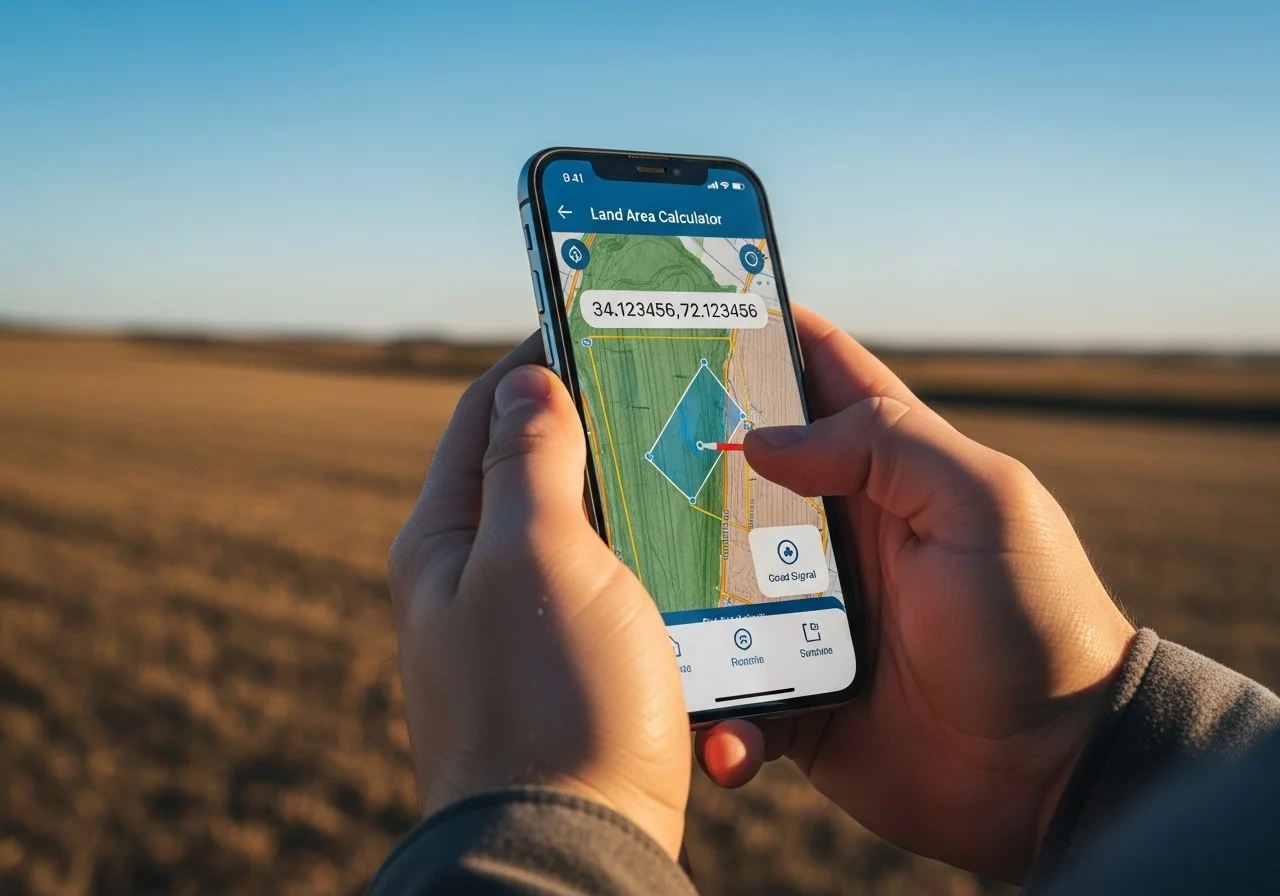
Apps like GPS Fields Area Measure (Android/iOS) and Field Area Map let you walk your land and record coordinates automatically, then export them as CSV files. Our calculator accepts those CSV exports directly via the “Import GPS File” button.
GPS Land Measurement — How Accurate Is It?
| GPS Type | Accuracy | Cost | Best For |
|---|---|---|---|
| Smartphone GPS | ±3–10 m | Free (built-in) | Farm planning, general estimates |
| External GPS receiver | ±0.5–2 m | $150–$400 | Professional land management |
| Survey-grade RTK GPS | ±2–5 cm | $2,000–$15,000 | Legal surveys, construction |
| Drone mapping (photogrammetry) | ±5–20 cm | $500–$5,000 | Large farms, topographic data |
Tips to Maximize Smartphone GPS Accuracy
- Measure in open areas away from tall buildings, dense forest, or steep canyon walls
- Wait 30–60 seconds after arriving at each point before recording — GPS signals stabilize over time
- Enable “High accuracy” location mode on your phone (uses GPS + Wi-Fi + cell towers)
- Take 3 readings per corner and average them for critical measurements
- Avoid measuring during heavy rain or dense cloud cover when possible
How Big Is a Plot of Land? Common Sizes Explained

| Country / Region | Typical Plot Size | In m² | In Acres |
|---|---|---|---|
| Nigeria / West Africa | 1 plot (18m × 36m) | 648 m² | 0.16 ac |
| UK residential | Standard building plot | 400–600 m² | 0.1–0.15 ac |
| USA suburban lot | Average residential lot | ~1,000–2,000 m² | 0.25–0.5 ac |
| Pakistan (Lahore/Karachi) | 1 Kanal (20 Marla) | ~505 m² | 0.12 ac |
| India (urban) | 30×40 ft / 40×60 ft | 111–223 m² | 0.03–0.06 ac |
| Australia residential | Average suburban block | ~700 m² | 0.17 ac |
How Big Is 250 Square Meters of Land?
250 m² is roughly the size of a large detached house footprint including a small garden. It’s a 15.8 m × 15.8 m square, or approximately 0.062 acres. For context, a standard UK double tennis court is about 260 m².
How Big Is 600 Square Meters of Land?
600 m² is a comfortable residential lot in most countries. That’s a 24.5 m × 24.5 m square, just under 0.15 acres. Many standard Nigerian plots (18m × 33.3m) and British building plots fall in this range.
How Big Is 1 Acre of Land?
One acre equals 4,046.86 m² — roughly the area of a standard international football pitch (105m × 68m ≈ 7,140 m², or about 1.76 acres). Visualize it as a square with sides of about 63.6 meters (roughly 208 feet per side).
Land Area Formulas — Manual Calculation Guide
Rectangle Formula
Area = Length × Width
Perimeter = 2 × (Length + Width)
Example: 100m × 100m plot → Area = 10,000 m² = 1 hectare, Perimeter = 400 m
Triangle Formula (for Triangular Plots)
Area = (Base × Height) ÷ 2
Example: A triangular lot with 80m base and 60m height → Area = (80 × 60) ÷ 2 = 2,400 m²
Irregular Polygon — The Shoelace Formula
For any polygon defined by vertices (x₁,y₁), (x₂,y₂) … (xₙ,yₙ):
Where vertices are listed in order (clockwise or counterclockwise) and the last vertex connects back to the first.
Our calculator implements this formula automatically. For GPS coordinates, it first converts latitude/longitude to flat X,Y coordinates using equirectangular projection centered on the polygon’s centroid, then applies the Shoelace Formula.
Common Calculation Mistakes to Avoid
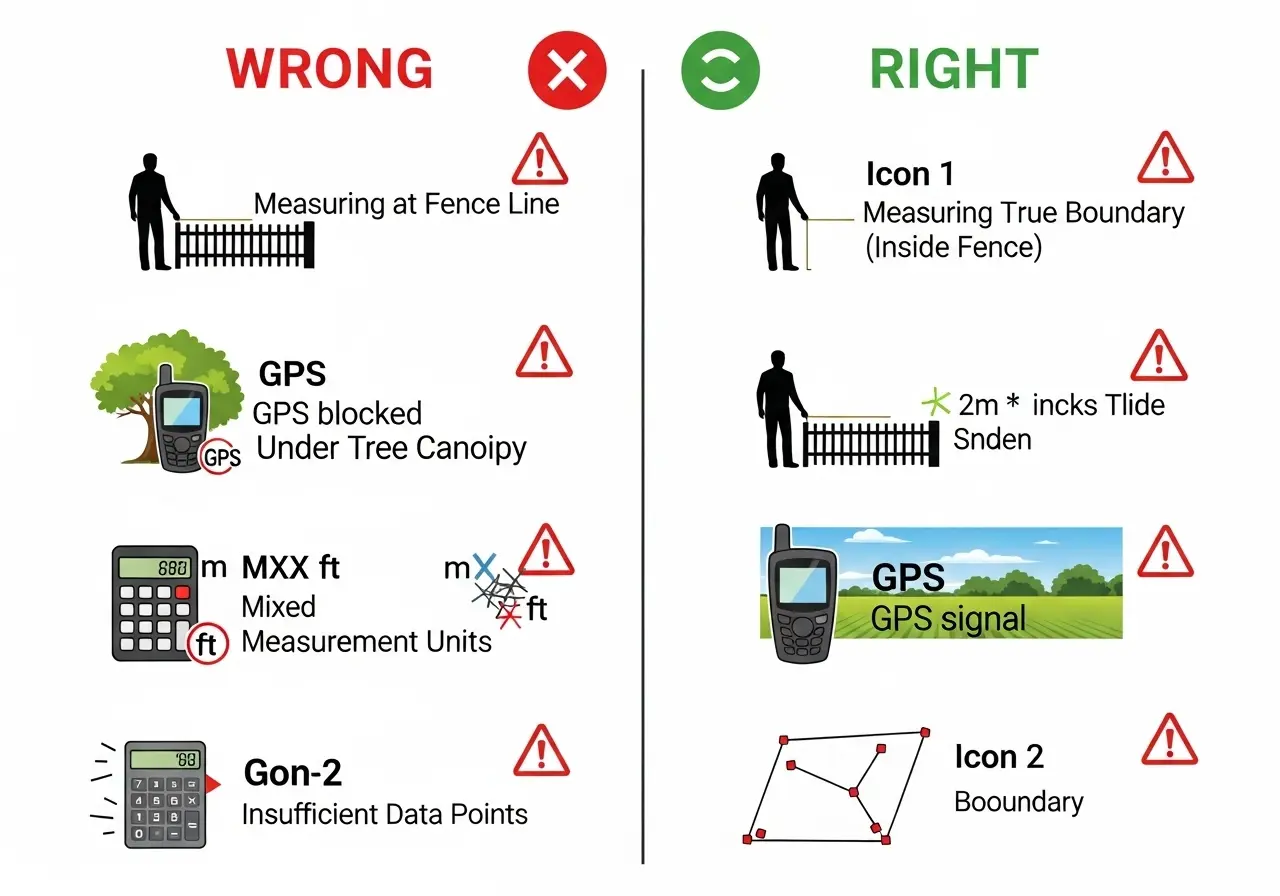
- Mixing units: Ensure all measurements are in the same unit before calculating. Mixing meters and feet is the most common error.
- Not closing the polygon: The last GPS vertex should connect back to the first. Our tool handles this automatically.
- Recording lat/lon in reverse: Coordinates should be latitude first, longitude second (not lon, lat). Swapping them places your polygon on the wrong continent.
- Using planar formula for large areas: The flat Shoelace Formula is accurate for plots under ~50 km². For larger areas, spherical calculations are needed (our tool uses the Haversine Formula for perimeter calculations).
- Confusing gross and net area: Some property listings quote gross area including roads and common spaces. Always confirm whether you need the net usable land area.
- Not Verifying Results Against Known Information The Problem: Blindly trusting calculator output without sanity checks or verification against existing records.
The Solution: If you have approximate area from old documents, tax records, or previous surveys, compare your results. A difference exceeding 20% likely indicates an error in data entry, boundary identification, or GPS collection. Investigate and remeasure before relying on the data.
Frequently Asked Questions
Conclusion: Measure Your Land with Confidence Today
You now have everything you need to measure land area like a professional surveyor—without the professional price tag.
Whether you’re planning your first garden bed or managing hundreds of acres, the right land area calculator transforms a complex surveying task into a simple 15-minute exercise. No more guessing. No more expensive mistakes. Just accurate, reliable measurements you can trust for planning, pricing, and decision-making.
Key Takeaways:
- GPS polygon method provides professional-grade accuracy for irregular shapes
- Rectangle method works perfectly for straight-boundary plots
- Smartphone GPS is sufficient for most agricultural and residential needs
- More GPS points on curves = higher accuracy
- Always verify results against known information
- Export and save your data for future reference
Ready to get started? Try our field area calculator above. Enter your property dimensions or GPS coordinates, and watch as it calculates your exact land area in seconds. It’s free, works offline, and requires no registration.
Have questions or need help with complex measurements? Share your experience in the comments below, or reach out to our community of users who’ve measured everything from backyard gardens to commercial farms.
Your land. Your numbers. Your control. Start measuring today.
Sources & Further Reading
Last Updated: | Next Review:
- National Geodetic Survey (NOAA). “GPS Accuracy.” geodesy.noaa.gov
- FAO (Food and Agriculture Organization). “Land Area Measurement Guidance for Agricultural Census.” 2020.
- Weisstein, Eric W. “Shoelace Formula.” MathWorld. mathworld.wolfram.com
- Sinnott, R.W. “Virtues of the Haversine.” Sky and Telescope, vol. 68, no. 2, 1984.
Related Calculators: Fertilizer & Farming Calculators | Civil Engineering Calculators