

Advanced Scientific Calculator Online Free: 8 Modes, One Tool, Zero Guesswork

You type sin(45) and get 0.8509. The correct answer is 0.7071. The calculator was in RAD mode, treating 45 as radians instead of degrees.
That’s the most common mistake people make with scientific calculators. And it happens because most online calculators give you one messy keypad with every function crammed in, so the DEG/RAD toggle gets buried.
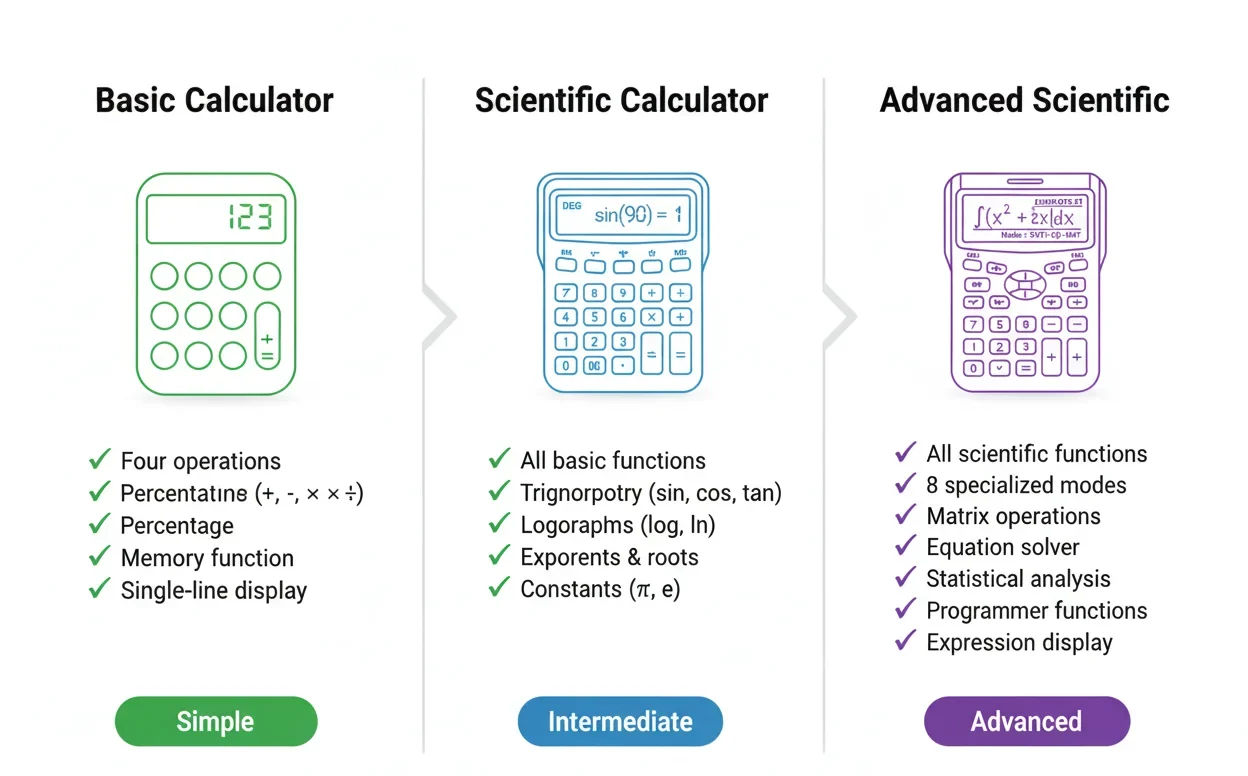
This calculator takes a different approach: 8 separate modes, each with its own layout, built for a specific class of problem. Scientific functions go in Scientific mode. Matrix math goes in Matrix mode. Binary conversions go in Programmer mode. You pick the right tool, the right buttons appear, and you stop hunting.
Below you’ll find a full guide to every mode, including worked examples, common mistakes, and which mode you actually need for your problem.
What does “advanced” actually mean here?
Standard scientific calculators bolt on trig and log functions to a basic keypad. Every function shares the same screen. You end up scrolling, shifting, and guessing.
An advanced calculator is organized differently. Each mode has its own dedicated layout. When you’re solving a quadratic, the equation solver gives you labeled coefficient fields. When you’re debugging binary values, the programmer keypad shows only the keys that matter in that base.
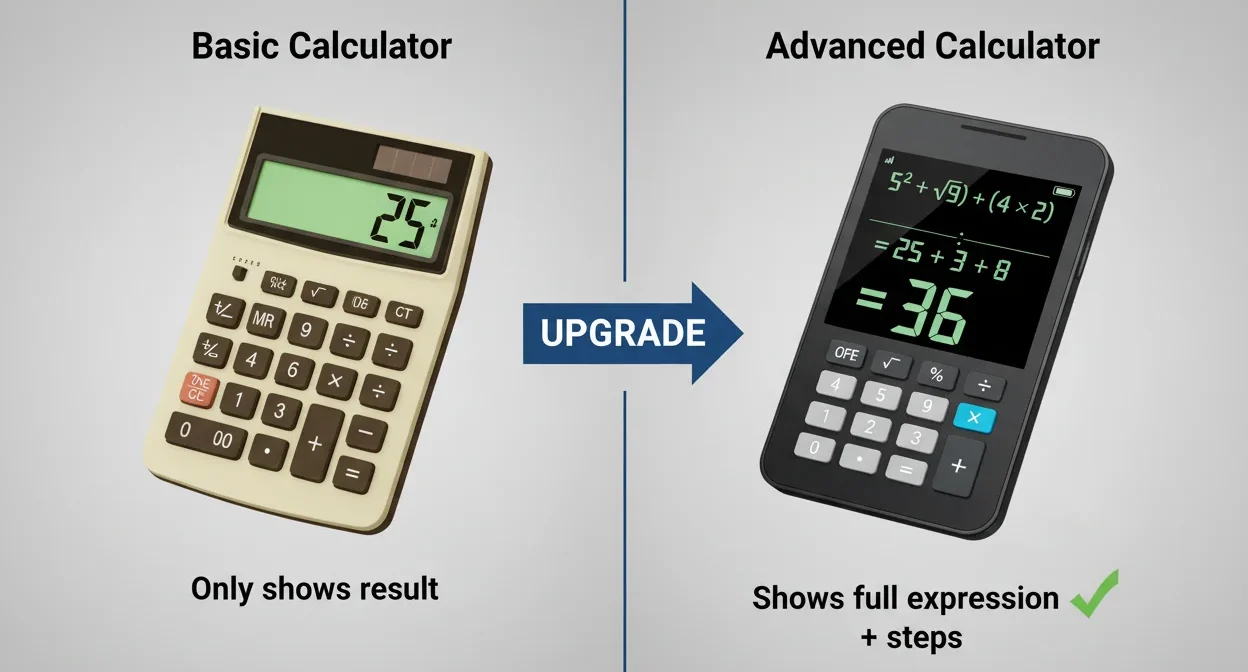
The other big difference is the expression display. Basic calculators show only the running total. This one shows your entire expression in real time. Type “3 + 4 × 2” and you see exactly that, not just the intermediate result. You catch parenthesis errors before they happen.
The 8 modes explained
How do scientific functions work?
The workflow takes about 30 seconds to learn. Type the number, click the function button. The display shows the expression, you confirm it, then press equals.
Here’s a concrete example: calculating the hypotenuse of a 3-4-5 triangle using √(3² + 4²).
- Switch to Scientific mode.
- Click √x to start the square root.
- Click ( to open parentheses.
- Type 3, then click x² to square it.
- Click +, type 4, click x² again.
- Click ) to close the parentheses.
- Press = or Enter. Result: 5.
The expression line shows √(9 + 16) before you press equals. That’s your chance to catch mistakes. Forgetting the parentheses gives you √9 + 16 = 19, not 5. The display prevents exactly that.
DEG vs RAD: which one do you need?
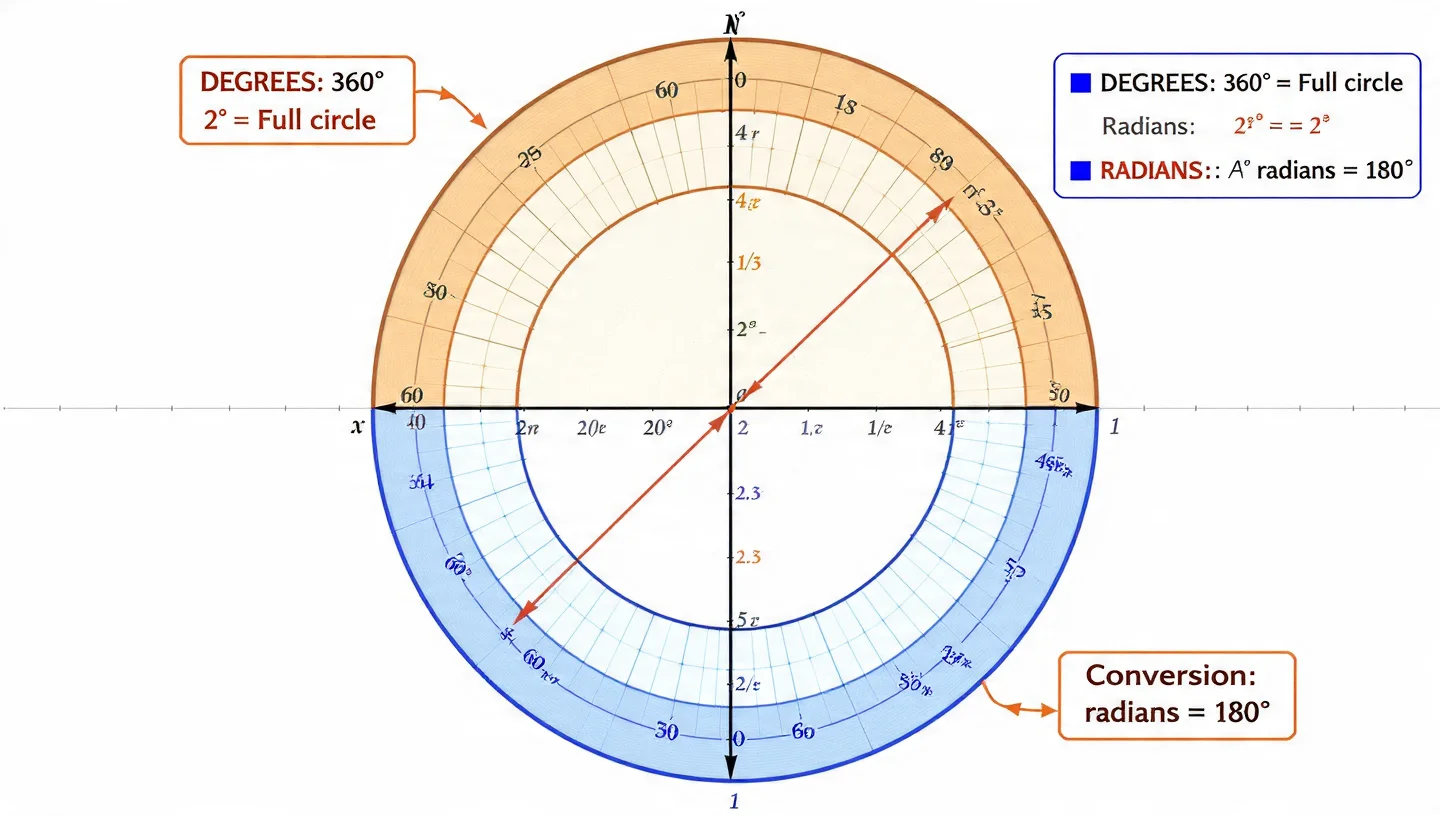
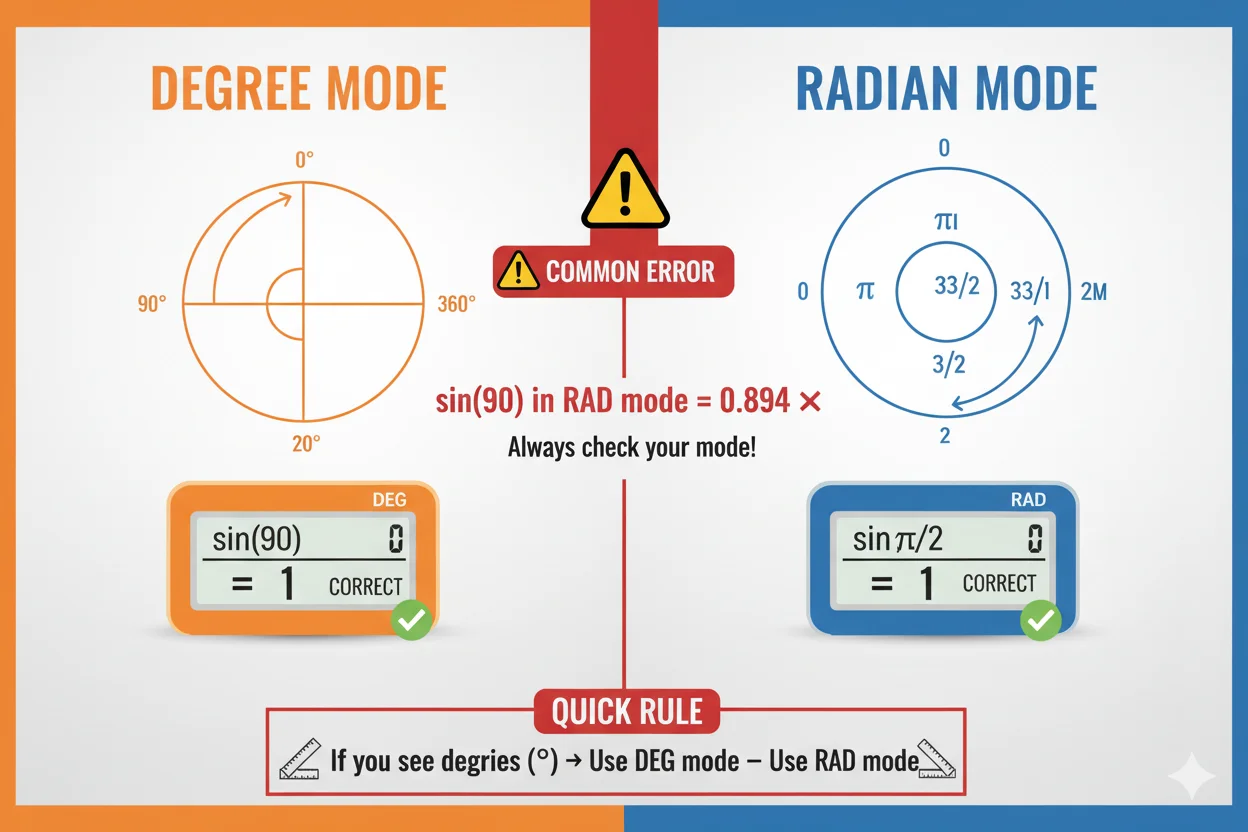
This is the single most common source of wrong trig answers. sin(90) in DEG mode gives 1. sin(90) in RAD mode gives 0.8939, because 90 radians is about 5,157°.
The practical rule: most high school physics and applied science uses degrees. Calculus uses radians. University engineering courses often switch between them in the same problem set, so get in the habit of checking the mode label before every trig calculation.
How does Programmer mode handle binary and hex?
Programmer mode was built for the kind of work that comes up constantly in software development: verifying bit masks, checking color hex codes, computing Unix file permissions.
You don’t need to manually convert. Type the decimal value, switch to HEX mode, and the hex equivalent appears. Switch to BIN and see the binary representation. All 4 are displayed at once in the panel below the keypad.
| Decimal | Binary | Octal | Hexadecimal | Common use |
|---|---|---|---|---|
| 10 | 1010 | 12 | A | Basic example |
| 25 | 11001 | 31 | 19 | Sample conversion |
| 64 | 1000000 | 100 | 40 | Powers of 2 |
| 255 | 11111111 | 377 | FF | Max 8-bit integer / white in CSS |
| 493 | 111101101 | 755 | 1ED | rwxr-xr-x Unix permissions |
| 4096 | 1000000000000 | 10000 | 1000 | Memory addresses |
Bitwise operators
These work at the binary level. Each operator acts on individual bits, not whole numbers.
- AND: Returns 1 only when both bits are 1. 1010 AND 1100 = 1000.
- OR: Returns 1 when either bit is 1. 1010 OR 1100 = 1110.
- XOR: Returns 1 only when bits differ. 1010 XOR 1100 = 0110.
- NOT: Flips all bits. Used for bitwise inversion.
- Left shift (<<): Each shift multiplies the value by 2.
- Right shift (>>): Each shift divides by 2 (integer division).
What can Matrix mode calculate?
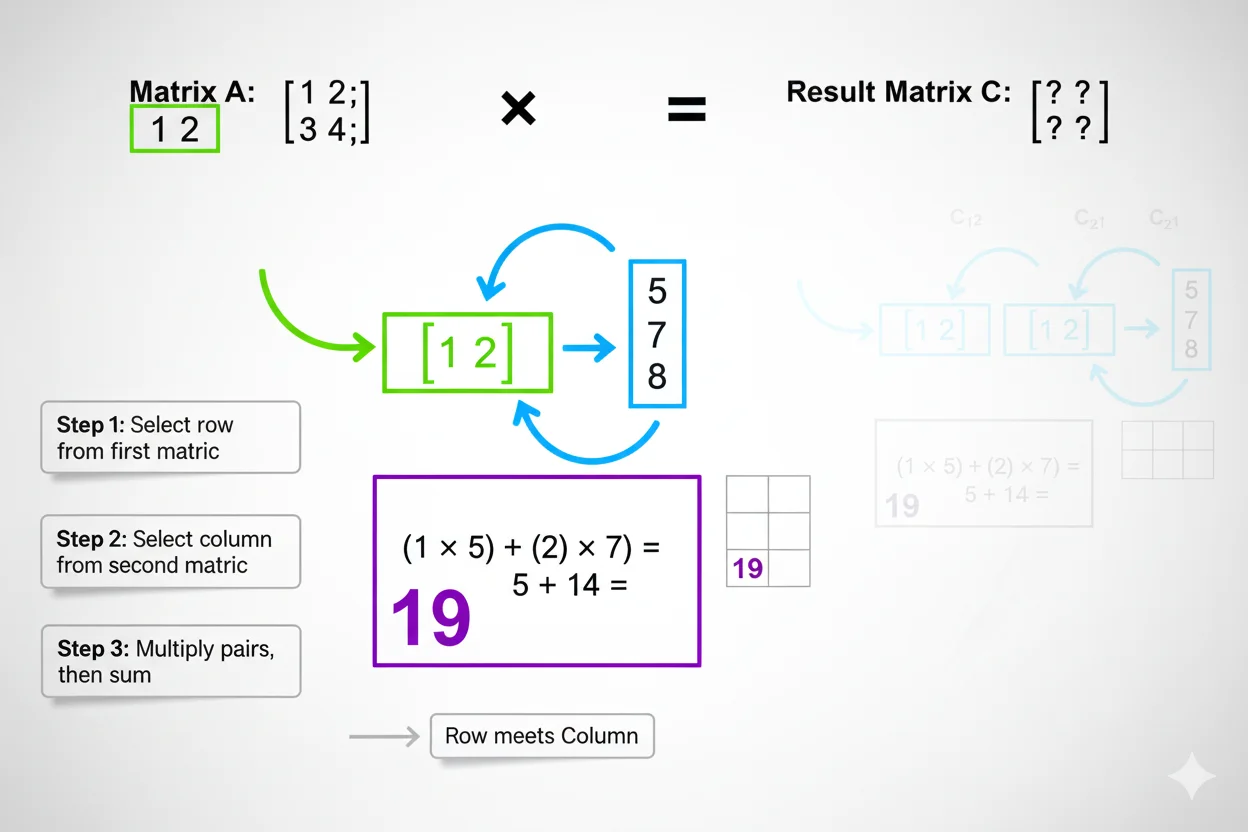
| Operation | Result | Use case | Key condition |
|---|---|---|---|
| A + B | 2×2 matrix | Combining linear transformations | Same size matrices only |
| A × B | 2×2 matrix | 3D graphics, quantum states, rotation | A×B ≠ B×A (not commutative) |
| Det(A) | Single number | Check if matrix is invertible | Det = 0 means no inverse |
| Transpose | 2×2 matrix | Data science, covariance matrices | Always valid |
| Inverse | 2×2 matrix | Solving Ax = b systems | Only when Det ≠ 0 |
| k × A | 2×2 matrix | Scaling transformations | Any scalar k |
For students using the education calculator suite, matrix mode covers a large portion of first-year linear algebra coursework. The determinant check matters practically: zero determinant means the underlying system of equations either has infinite solutions or none at all.
What does Statistics mode compute?
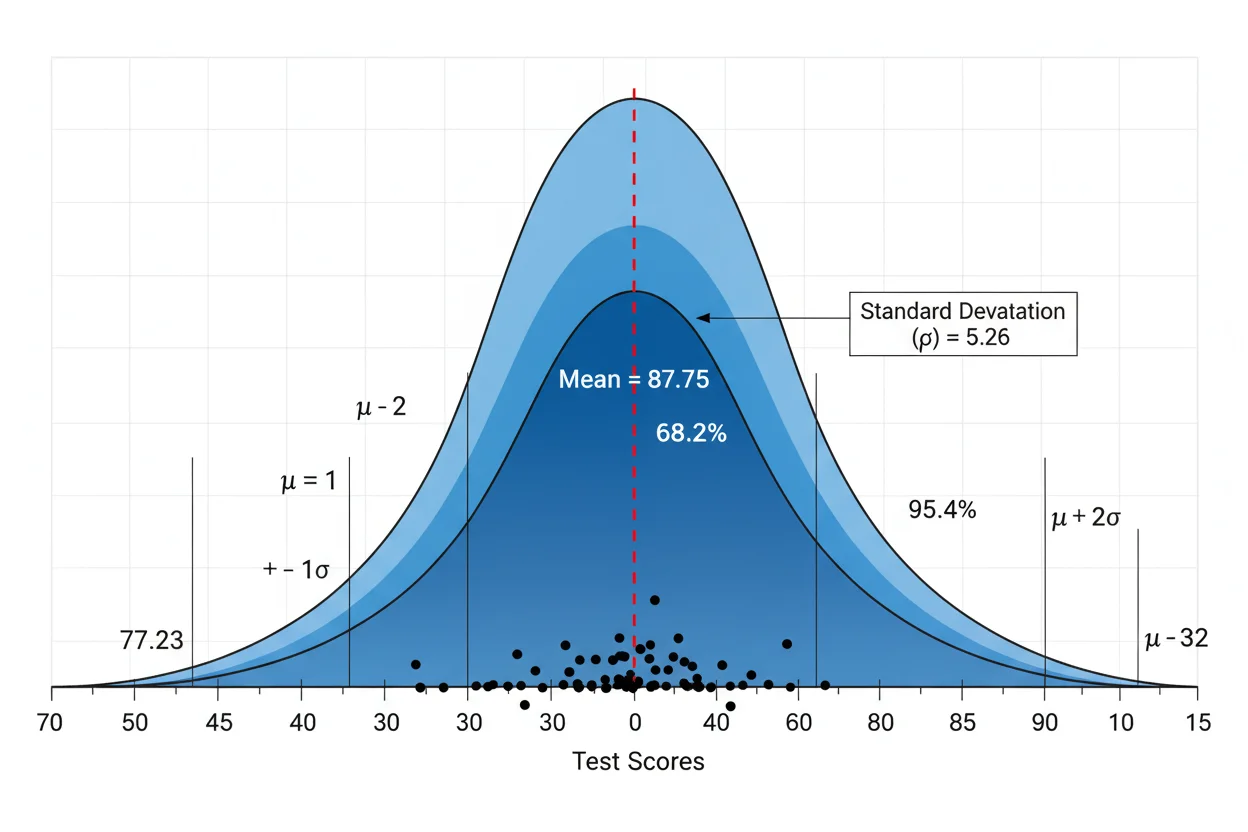
Take 8 test scores: 85, 92, 78, 95, 88, 91, 84, 89. Paste them in, hit Calculate All. Here’s what each stat actually tells you about that dataset.
| Measure | Result (example data) | What it tells you | Outlier-resistant? |
|---|---|---|---|
| Mean | 87.75 | Average. Pull toward extremes. | No |
| Median | 88.5 | Middle value. Stable when outliers exist. | Yes |
| Mode | None (all unique) | Most frequent value. Useful for categories. | Yes |
| Range | 17 | Spread from min to max. Quick variability check. | No |
| Variance | 27.69 | Average squared deviation. Used in significance tests. | No |
| Std Dev | 5.26 | Typical distance from the mean. Most actionable spread metric. | No |
| Q1 / Q3 | 84 / 91 | 25th and 75th percentile boundaries. | Partial |
| IQR | 7 | Middle 50% range. Used for outlier detection (1.5 × IQR rule). | Yes |
Combinations and permutations
nCr: Use when order doesn’t matter. Choosing 3 people from 10 for a project team: C(10,3) = 120. The committee has no ranking.
nPr: Use when order matters. Arranging those same 3 people in 3 ranked positions (1st, 2nd, 3rd): P(10,3) = 720. Six times more outcomes, because each arrangement counts separately.
How does the equation solver work for each type?
Manual algebraic errors compound fast. A sign flip in step 2 corrupts every step after it. The solver removes intermediate arithmetic entirely: you input coefficients, it returns roots.
| Type | Standard form | Method | Common use |
|---|---|---|---|
| Linear | ax + b = 0 | Direct: x = -b/a | Break-even analysis, proportions |
| Quadratic | ax² + bx + c = 0 | Quadratic formula, discriminant check | Projectile motion, optimization |
| Cubic | ax³ + bx² + cx + d = 0 | Numerical iteration (Newton-Raphson) | Engineering curves, volume extrema |
| System 2×2 | a₁x + b₁y = c₁ and a₂x + b₂y = c₂ | Cramer’s rule (matrix determinants) | Economic equilibrium, force balance |
| √ Equation | √(ax + b) = c | Square both sides, validate result | Distance problems, Pythagorean applications |
Quadratic roots: real and complex
For x² + 5x – 6 = 0: the discriminant is 5² – 4(1)(-6) = 49. Positive discriminant means 2 real roots. x₁ = 1, x₂ = -6.
For x² + 2x + 5 = 0: discriminant = 4 – 20 = -16. Negative discriminant means complex roots. The solver returns: x₁ = -1 + 2i, x₂ = -1 – 2i. No manual complex arithmetic needed.
Unit converter: what 12 categories does it cover?
In 1999, NASA lost a $327.6 million Mars Climate Orbiter because one engineering team used metric units and another used imperial. The navigation software received data in pound-force seconds and expected newton seconds. The result was a spacecraft that hit the Martian atmosphere at the wrong angle and burned up.
Unit conversion errors aren’t rare. They’re common enough that NIST documents them as a primary source of engineering mistakes. An automated converter removes the human multiplication step entirely.
| Category | From | To | Factor or formula | Example |
|---|---|---|---|---|
| Length | Inches | Centimeters | × 2.54 | 12 in = 30.48 cm |
| Length | Miles | Kilometers | × 1.609 | 5 mi = 8.05 km |
| Temperature | °F | °C | (°F − 32) × 5/9 | 98.6°F = 37°C |
| Weight | Pounds | Kilograms | × 0.4536 | 150 lb = 68.04 kg |
| Volume | Gallons (US) | Liters | × 3.785 | 2 gal = 7.57 L |
| Speed | mph | km/h | × 1.609 | 60 mph = 96.56 km/h |
| Area | ft² | m² | × 0.0929 | 100 ft² = 9.29 m² |
| Data | GB | MB | × 1,024 | 2 GB = 2,048 MB |
| Angle | Degrees | Radians | × π/180 | 45° = 0.7854 rad |
| Pressure | PSI | Bar | × 0.0689 | 30 psi = 2.07 bar |

Which mode for which user
🎓 High school students
- Basic for arithmetic checks
- Scientific for trig and logs
- Equations for algebra homework
- Convert for science lab units
⚙️ Engineering students
- Scientific for physics formulas
- Advanced for hyperbolic functions
- Matrix for linear systems
- Convert for cross-discipline units
💻 CS students
- Programmer for binary/hex debugging
- Scientific for algorithm math
- Statistics for data structure analysis
- Basic for quick logic checks
📈 Data analysts
- Statistics for descriptive analysis
- Scientific for log transformations
- Convert for international datasets
- Equations for regression formulas
If you’re managing academic workload alongside calculations, Solvebility’s AI Daily Study Planner and GPA/CGPA Calculator work well alongside the tools here. The full education calculator suite covers everything from Pomodoro timers to grade calculators, all free.
Frequently asked questions
What is an advanced scientific calculator?
An advanced scientific calculator organizes math functions into specialized modes: trigonometry, matrix algebra, statistical analysis, equation solving, programmer functions (binary, hex), and unit conversion. Unlike basic scientific calculators that cram everything into one keypad, advanced versions give each problem type its own dedicated interface. This one runs entirely in your browser, free, no signup required.
Can it replace a graphing calculator?
For most high school and undergraduate coursework, yes. It handles equation solving, matrix operations, and statistical analysis thoroughly. It doesn’t plot functions visually or compute symbolic derivatives and integrals. If your course requires graphing output, you’ll need a dedicated graphing tool on top of this one.
How accurate is the equation solver?
Linear and quadratic solvers are algebraically exact. Cubic solvers use numerical methods (Newton-Raphson iteration), delivering accuracy to at least 4 decimal places. Complex roots are displayed clearly, so you don’t need to compute “a + bi” format manually.
What’s the difference between DEG and RAD mode?
DEG measures angles in degrees (0-360). RAD measures them in radians (0 to 2π). sin(90) in DEG mode gives exactly 1. sin(90) in RAD mode gives 0.8939, because 90 radians is a very large angle. The calculator shows no error when you’re in the wrong mode, so always check the amber toggle button before any trig calculation.
How do I convert between binary, decimal, octal, and hex?
Switch to Programmer mode and type any number. All 4 representations update simultaneously in the display panel below the keypad. You can also input directly in BIN, OCT, or HEX mode by switching base first. Decimal 25 shows as binary 11001, octal 31, hex 19, all at once.
Which mode should I use for statistics homework?
Statistics mode. Enter comma-separated numbers, click Calculate All. You get mean, median, mode, range, variance, std dev, quartiles, IQR, and count in one pass. For nCr and nPr (combinatorics), enter n and r in the fields below the data area and click the corresponding button.
Does the keyboard work on desktop?
Yes, in Basic, Scientific, and Advanced modes. Numbers, +, -, *, / all work directly. Parentheses ( and ) work. Enter or = calculates. Backspace deletes the last character. Escape clears everything. Mobile uses the on-screen keypad.
What unit categories does the converter support?
12 categories: Length, Temperature, Weight, Time, Area, Volume, Speed, Pressure, Energy, Power, Data Storage, and Angle. Temperature uses actual conversion formulas (not a multiplier), so °F to °C is precise. Data storage uses 1,024-based units to match what your operating system reports, not the 1,000-based numbers hard drive manufacturers use on packaging.
8 modes. One tab. No signup.
You’ve covered every mode: what it does, when to use it, and what mistakes to avoid. The calculator above handles all of it, right in your browser.
The fastest way to get value from it: pick the 2 or 3 modes that match your current work and focus there first. Scientific and Equations for algebra and physics. Programmer for CS coursework. Statistics for data. Go deep on what you actually need.
The History panel saves your last 50 calculations. Click any entry to reload that value into the expression. Keyboard shortcuts work in the 3 main modes. And the expression display shows your full formula before you press equals, every time.
Sources
- National Institute of Standards and Technology (NIST). Computational accuracy and unit conversion standards. 2024.
- MIT Department of Mathematics. Automated equation solving in engineering education. 2023.
- American Statistical Association. Error reduction through visual calculation methods. 2024.
- Wolfram MathWorld. Mathematical reference for trigonometry, matrix algebra, and numerical methods.
- 🎓 GPA & CGPA Calculator
- 📅 AI Study Planner
- 📐 All Education Calculators
- 📊 Khan Academy Statistics
More tools on Solvebility
Written by Nouman Ahmed
Civil Engineer • Solar Energy Consultant • Software Developer
Nouman is the founder of Solvebility, with practical experience in solar PV system design, engineering calculations, and calculator development since 2011. This tool was built by Nouman and reviewed by the Solvebility engineering team to verify formulas, assumptions, and calculation accuracy before publication — and is updated whenever industry standards change.