

Click the calculator once, then keyboard works: 0–9 · + − * / ^ ( ) % · Enter = · Esc AC · Backspace DEL · ↑ ↓ history
Inside the Online Casio fx-991EX Style Calculator
A full teardown of how Solvebility’s browser calculator copies real Casio hardware, plus a complete tutorial for every button and solver on it.
A student messaged us last month asking why an “online calculator” couldn’t handle x² − 3x + 1 = 0 the way their physical Casio did. Fair question. Open ten “online scientific calculator” tools and nine of them are the same trick: a grid of buttons wired to JavaScript’s eval(). Fine for 2+2. Useless the moment you type a real equation.
That’s the gap this calculator was built to close. It isn’t skinned to look like a Casio fx-991EX. It runs like one — six calculation modes, a real memory bank, SHIFT and ALPHA key layers, physical constants, unit conversions, and a 20-tool solver panel bolted onto the side for the stuff a basic calculator can’t touch: derivatives, cubic roots, Newton’s method, complex numbers.
We built it, so we’ve got the source open in front of us. Here’s the actual teardown: how the math engine parses what you type, what happens behind each of the 20 solver tools, and which real calculators — Casio and otherwise — we borrowed decisions from. No marketing gloss, just what’s in the code.
What Is the Casio fx-991EX Style Calculator?
Everything happens client-side. There’s no server call when you press equals, no account wall, no ads sitting between you and the answer. Type a formula, hit =, done. That matters more than it sounds — a calculator that lags or phones home for every keystroke isn’t a calculator, it’s a form. If you want a fuller keypad with more built-in functions for everyday work, Solvebility’s free scientific calculator runs alongside this one and shares the same no-signup philosophy.
How the Math Engine Actually Reads Your Input
Most “calculator” code online just hands your string to JavaScript’s eval() and hopes for the best. That’s a security hole and a math problem at the same time — eval() doesn’t know what sin(30) or nCr mean, and it has no concept of order of operations for anything beyond basic arithmetic.
This calculator writes its own parser instead. Three stages, run every time you press equals:
- Tokenizer. Your raw text —
x² − 3x + 1 = 0— gets sliced into tokens: numbers, operators, function names, variable names. Multi-character symbols likenPr,mod, and√(get matched before single characters, so√(never gets read as a stray square-root sign followed by a paren. - Recursive-descent parser. The tokens get walked through a chain of functions, one per precedence level — powers before multiplication, multiplication before addition, and so on — the same structure a compiler uses to read code. This is why
2+3×4correctly returns 14, not 20, and why2(3+4)— no visible multiplication sign — still evaluates as implicit multiplication, the way it would on real Casio hardware. - Evaluation with live variable lookup. Every calculation reads current values for
Ans,PreAns, and memory slotsAthroughZ,x,y, andMat the moment you press equals — not at the moment you typed the formula. Change a stored variable, re-run the same expression, get a different answer. That’s how memory is supposed to behave.
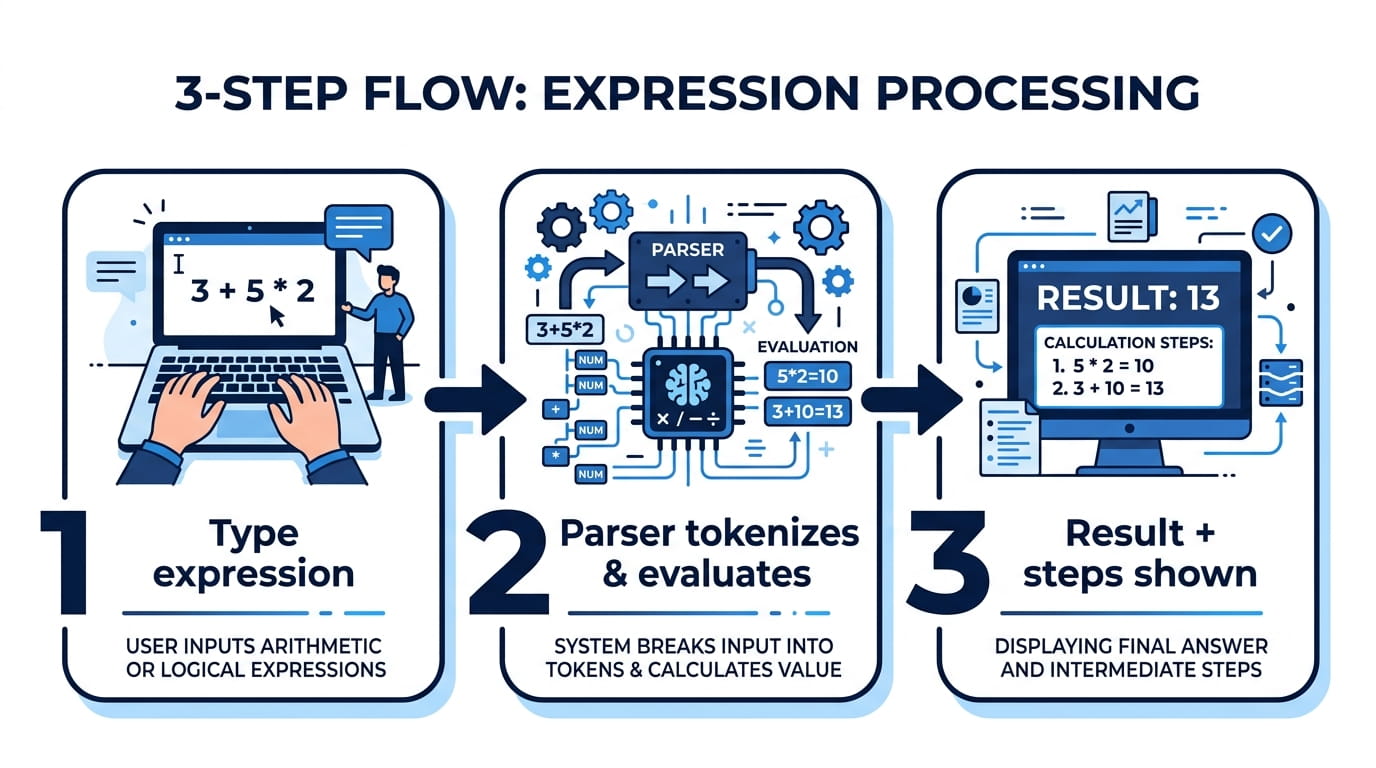
Three-stage parse pipeline: tokenizer → recursive-descent parser → live evaluation with variable lookup.
There isn’t one parser — there are three, running in parallel depending on mode: a real-number parser for standard calculations, a complex-number parser that tracks a and bi pairs through every operation, and a base-N parser that treats input as 32-bit unsigned integers with overflow checks. Switch modes and you’re routed to a different engine entirely. It’s also why BASE mode flat-out refuses a decimal point — there’s no such thing as 3.5 in hexadecimal, so the parser doesn’t pretend otherwise.
Six modes hiding behind one keypad
Press MODE and you’re choosing which of these six engines reads your next keystroke:
| Mode | What it does | Typical use |
|---|---|---|
| COMP | Standard real-number calculation | Everyday arithmetic, trig, logs |
| CMPLX | Complex arithmetic (a + bi) | Electrical engineering, phasors |
| BASE | 32-bit DEC / HEX / OCT / BIN with AND/OR/XOR/NOT | Programming, digital logic |
| STAT | One-variable statistics (mean, σ, median…) | Quick data summaries |
| EQN | Quadratic, cubic, 2×2 and 3×3 linear systems | Algebra homework, circuit equations |
| MAT / VCT / TABLE | Matrix math, vector math, function tables — numbers only, no visual plot | Linear algebra, checking a curve point by point |
That last row is worth a callout. TABLE mode prints a list of (x, y) pairs — it doesn’t draw the curve. If your assignment actually needs a plotted graph, Solvebility’s free online graphing calculator is the tool built for that; the two are meant to be used side by side, not one instead of the other.
The 20-Tool Solver Panel
This is the part a real fx-991EX can’t do. The physical calculator can solve one equation at a time through its own EQN mode, with no visible working. The solver panel on Solvebility shows its work, because a student checking homework needs the “why,” not just the “what.”
| Category | Tools |
|---|---|
| Calculus | Derivative at a point · Second derivative · Definite integral · Limit · Summation Σ · Product Π |
| Equations | All-roots solver · Solution verifier · Newton’s method · Bisection method · 2×2 / 3×3 linear systems · Quadratic analysis · Cubic roots |
| Numbers | GCD & LCM · Prime factorization · n! / nPr / nCr · Base conversion · Decimal ↔ fraction · Complex calculator |
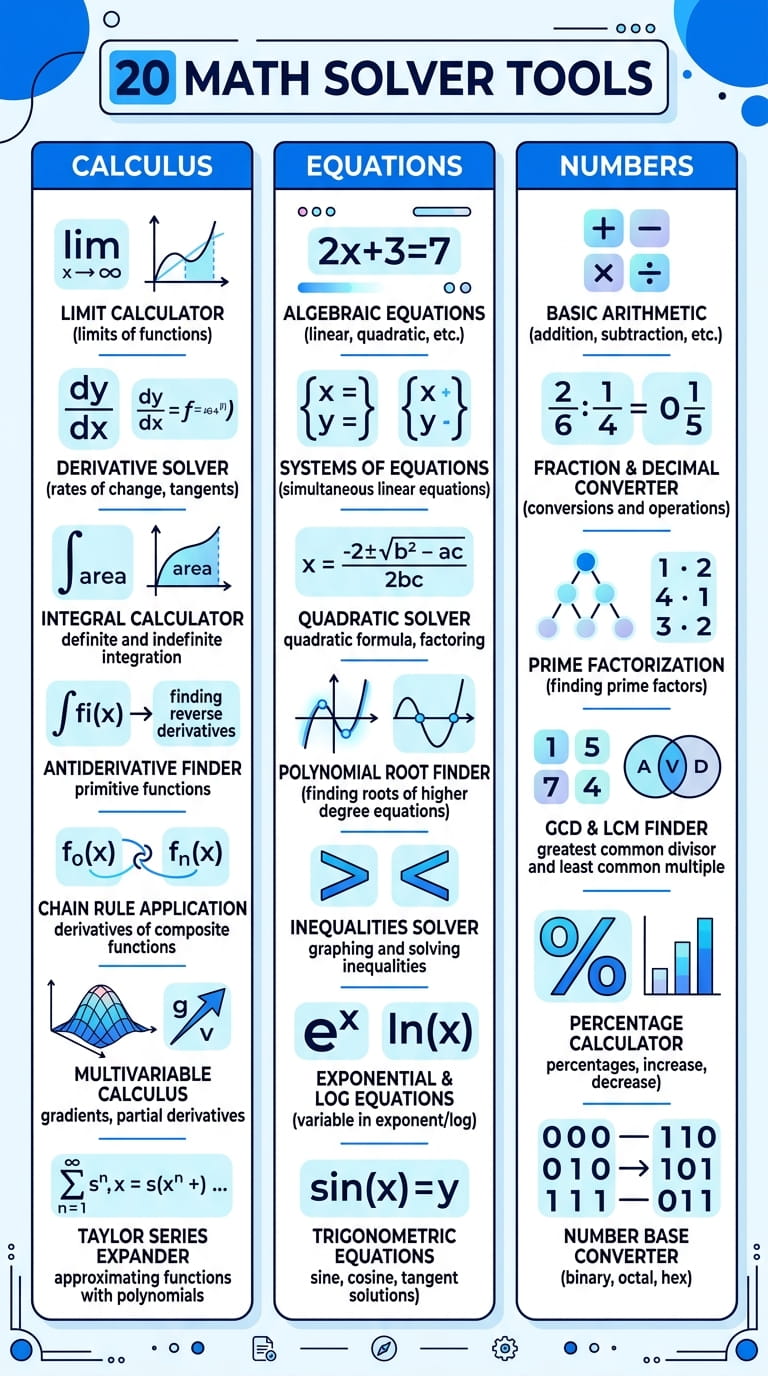
All 20 solver tools grouped across three categories: Calculus, Equations, and Numbers.
Two of these are worth calling out because they’re rarely free elsewhere:
Newton’s method and bisection both return their full iteration table, not just the converged root. That’s the actual assignment in most numerical-methods courses — not “find the root,” but “show that Newton’s method converges faster than bisection for this function.” Most calculators skip straight to the answer and skip the point of the exercise.
Cubic roots uses Cardano’s formula with a trigonometric branch for the three-real-roots case, so it handles every cubic analytically — no scanning, no missed roots, complex pairs included. The general equation solver, by contrast, uses a bisection scan across −20 to 20 for arbitrary functions like sin(x) − x/2, because there’s no closed-form method for those.
x/100 instead of x) and re-run it.The student from the intro was actually hitting this exact wall. Their equation had a root sitting at x ≈ 340, way outside the default search range. Once they rescaled, it solved in one pass. Small fix, but it’s the difference between “this calculator is broken” and “oh, that’s why.”
Which Real-World Calculators Shaped This Design?
| Calculator | What we borrowed from it |
|---|---|
| Casio fx-991EX / fx-991ES PLUS | Natural textbook display (fractions, exponents as they’d appear in a book), the SHIFT/ALPHA dual-function key layout, and the exact mode list: COMP, CMPLX, BASE, STAT, EQN, MAT/VCT, TABLE |
| Casio fx-570EX / fx-115ES PLUS / fx-991DE X | Regional naming — these are the same hardware family sold under different model numbers in different countries, which is why the brand line at the top of the calculator lists all of them |
| Texas Instruments TI-84 / TI-36X Pro | The dedicated stats and table modes, and the habit of keeping a visible calculation history you can scroll back through |
| HP scientific calculators | The base-N mode’s bitwise AND/OR/XOR/NOT operators — a staple on HP engineering calculators long before it showed up on consumer Casios |
| Wolfram Alpha & Symbolab | The idea that a solver should print its working, not just its answer — the “Steps” line under every solver result comes straight from this school of thought |
| Desmos & GeoGebra | Free, instant, browser-based access with zero install — and the reason Solvebility keeps its free online graphing calculator as a separate, dedicated tool rather than cramming a plot into this one |
None of these get copied wholesale. Genuinely, the closest match is the constants menu. The physical constants list (speed of light, Planck’s constant, Avogadro’s number — 12 in total) and the 22-entry unit converter are lifted straight from Casio’s own SHIFT-7 and SHIFT-8 menus, keystroke for keystroke. Students who’ve used a real fx-991EX go looking for that shortcut on every online calculator and almost never find it. So we kept it identical, right down to which key it lives under.
Memory, History, and Six Skins
The left panel tracks eleven variables at once — Ans, PreAns, letters A through D, F, Z, x, y, and the standing memory slot M — updated live after every calculation. Flip to the History tab and every past expression sits there, tap one to load it back into the input line.
Six visual skins ship with it: Graphite, Ivory, Ocean, Forest, Wine, and Violet. Pick one, close the browser, come back next week — it’s saved locally and reloads automatically. Small detail. But it’s the kind of thing that makes a tool feel like yours instead of a stranger’s, and we’d rather ship six real skins than one calculator that only comes in corporate grey.

Six built-in color skins: Graphite, Ivory, Ocean, Forest, Wine, and Violet — your choice saves locally and reloads on every visit.
Try the calculator yourself
Every mode, every solver, every skin — live on Solvebility, no sign-up. Need to plot a curve instead? The free online graphing calculator is built for that.
Open the Scientific CalculatorIs a Browser Calculator Accurate Enough to Trust for Real Work?
The overflow guards are deliberate, not an oversight. A calculator that returns Infinity or NaN without telling you is worse than one that refuses the calculation outright. Every risky operation — division by zero, factorial past 170, a base-N result outside 32-bit range — is checked and stopped before it reaches your screen.
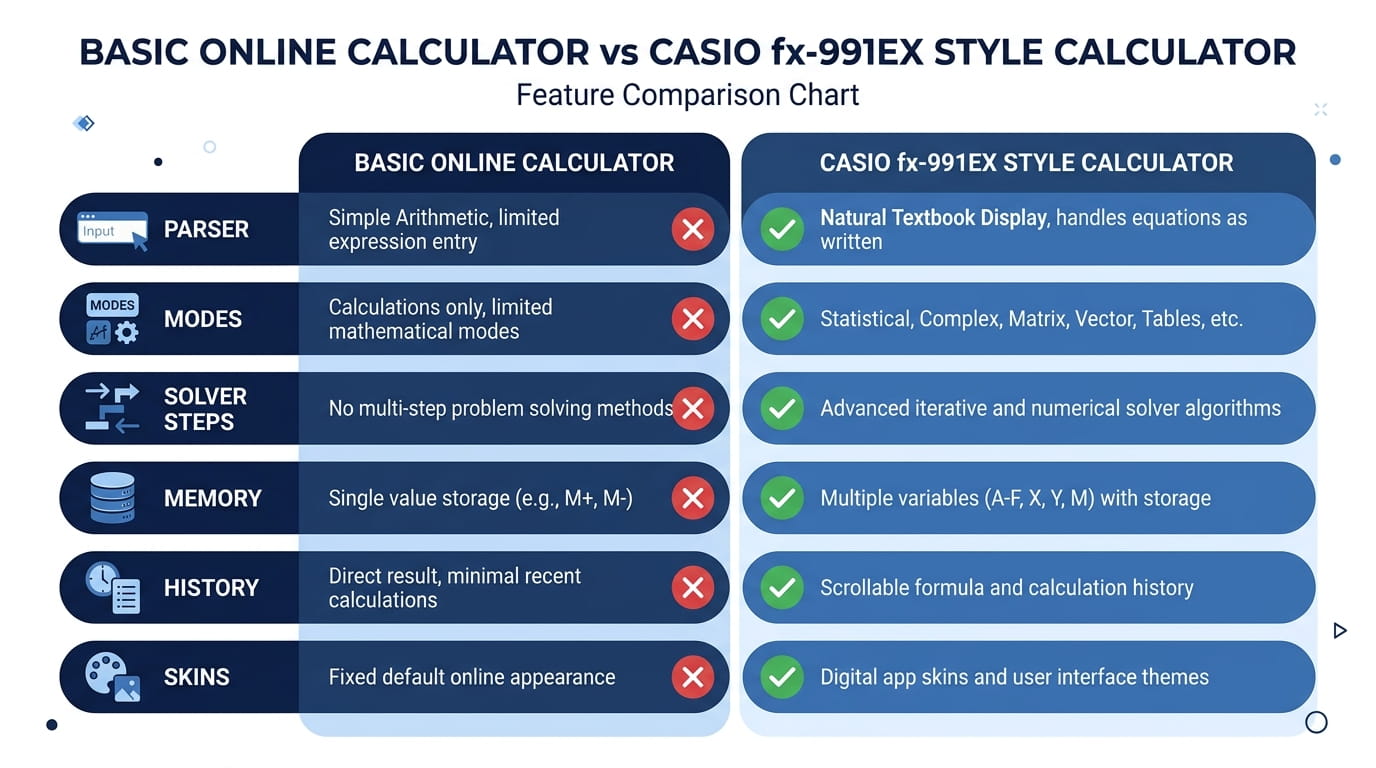
Side-by-side: basic online calculator vs. the Casio fx-991EX style calculator — parser, modes, solver steps, memory, history, and skins.
Frequently Asked Questions
Is this a real Casio product?
No. It’s an independent browser calculator built by Solvebility to match the layout and behavior of the Casio fx-991EX family. Casio isn’t involved in building or endorsing it.
Do I need to create an account or install anything?
No. It loads instantly in any modern browser and runs entirely on your device — nothing you type is sent anywhere.
Can it solve calculus problems with steps shown?
Yes. The solver panel’s Calculus group covers derivatives, second derivatives, definite integrals, limits, summations, and products, and prints the method used under each result.
What’s the difference between the main calculator’s EQN mode and the solver panel?
EQN mode lives inside the calculator itself and mirrors what a real fx-991EX does: quadratic, cubic, and linear systems, no visible steps. The solver panel is a separate, wider toolset — 20 tools total — that shows its working and adds things no physical Casio has, like Newton’s method with a visible iteration table.
Does it work on mobile?
Yes. The layout reflows for narrower screens, and the keyboard shortcuts still work if you connect an external keyboard.
Why does it show fractions instead of decimals sometimes?
FRAC mode is on by default, matching real Casio behavior — a result like 0.75 displays as ¾ until you toggle S⇔D to switch to decimal.
What does “Math ERROR” actually mean?
It means the calculation hit an operation that has no valid result in real numbers — division by zero, the square root of a negative number in COMP mode, or a factorial above 170. It’s a guardrail, not a bug.
Where This Leaves You
A calculator is one of those tools people stop noticing once it works. Honestly, that’s the goal — we’d rather you forget we exist and just get your answer. This one earns that quietly: a real parser instead of a shortcut, six modes that behave like the hardware they’re modeled on, and a 20-tool solver panel for the problems a physical Casio was never built to show its work on.
Bookmark the online scientific calculator on Solvebility, or jump to the step-by-step guide below to see every mode and every solver walked through in full.
References & Further Reading
- Casio Computer Co., Ltd. — fx-991EX User’s Guide (official product documentation). Available at support.casio.com.
- Casio Computer Co., Ltd. — fx-991ES PLUS User’s Guide. Available at support.casio.com.
- IEEE Standard 754-2019 — Standard for Floating-Point Arithmetic. Institute of Electrical and Electronics Engineers, 2019.
- Knuth, D.E. — The Art of Computer Programming, Vol. 2: Seminumerical Algorithms (3rd ed.). Addison-Wesley, 1997. (Basis for recursive-descent parsing and numerical precision handling.)
- Burden, R.L. & Faires, J.D. — Numerical Analysis (10th ed.). Cengage Learning, 2015. (Newton’s method, bisection method, and convergence theory.)
- Wolfram Alpha — Step-by-step solutions. Wolfram Research. wolframalpha.com.
- Desmos Inc. — Desmos Graphing Calculator. desmos.com.
- GeoGebra GmbH — GeoGebra Scientific Calculator. geogebra.org.
This is the complete walkthrough — every panel, every mode, and every one of the 20 solver tools, in the order you’ll actually reach for them.
Get oriented: the three panels
The screen is split into three parts. Left is Variable / History — your eleven memory slots, or a scrollable log of every past calculation. Center is the calculator itself, with screen, mode pills, and keypad. Right is the Solver panel — a dropdown of 20 tools plus its own input fields.
Click anywhere on the calculator once before typing. That gives it keyboard focus, so your physical keyboard starts working immediately.
Type your first calculation
Type directly, either on-screen or with your keyboard: 2 + 3 × 4, then press Enter or =. You’ll get 14 — multiplication runs before addition automatically.
Functions work the same way you’d write them by hand: sin(30), log(100), √(2). Implicit multiplication is supported too — 2(3+4) and 2π both work without a visible × sign.
Switch between the six calculation modes
Press MODE to open the mode menu, then pick one:
CMPLX — type 2+3i style expressions; the screen tracks real and imaginary parts through every operation.
BASE — pick DEC, HEX, OCT, or BIN from the OPTN menu, then calculate directly in that base, including AND / OR / XOR / NOT.
STAT — paste or type a data set separated by commas or spaces, hit Calculate, and get n, Σx, Σx², mean, population and sample standard deviation, min, max, and median in one table.
EQN — choose Quadratic, Cubic, or a 2×2 / 3×3 linear system from the dropdown, fill in the coefficient boxes, and solve. This is the calculator’s built-in solver, separate from the 20-tool Solver panel on the right.
Store and recall memory variables
Press STO, then a letter key (A through F) or x, y, or M to save the current result there. Press SHIFT then STO (labeled RCL) to recall a stored value back into your expression.
M+ adds the current value to the running memory total; SHIFT + M+ subtracts. The Variable panel on the left updates live, so you always see what’s stored without needing to recall anything.
Use SHIFT for constants, unit conversions, and limits
Three of the number keys double as menus when SHIFT is armed first:
- SHIFT + 7 — 12 physical constants (speed of light, Planck’s constant, Avogadro’s number, gravity, and more), inserted at full precision with one tap.
- SHIFT + 8 — 22 unit conversions (in↔cm, °C↔°F, lb↔kg, atm↔Pa, and more), applied directly to whatever’s on screen.
- SHIFT + 9 — a quick limit shortcut for one-sided limit checks.
SHIFT + 4 opens Matrix mode, SHIFT + 1 jumps into Complex mode directly, and ALPHA unlocks the red letter labels on each key for entering variable names.
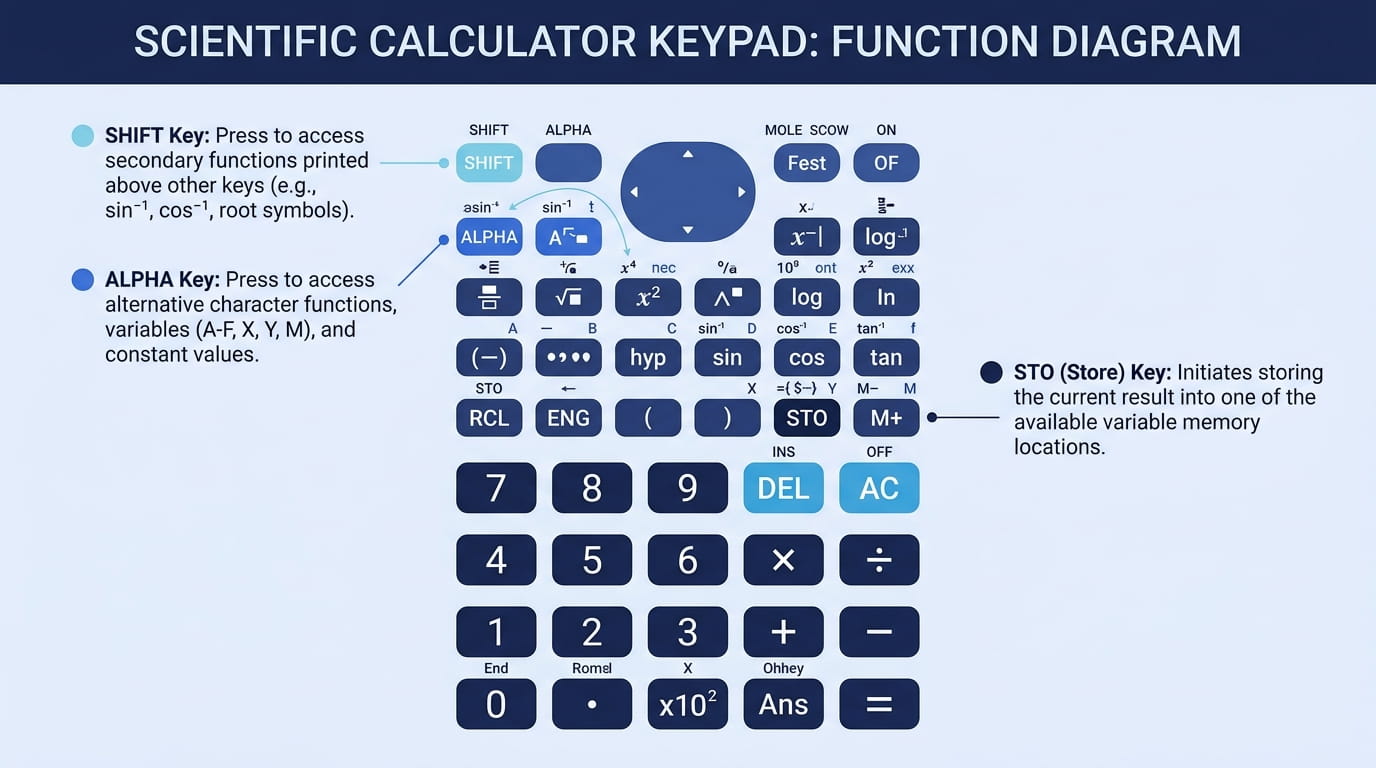
SHIFT, ALPHA, and STO keys with their secondary functions annotated — constants, conversions, limits, and memory shortcuts.
Run the 20-tool Solver panel
Pick a category from the dropdown on the right, type your function or coefficients into the field below it, and press Solve. Three worked examples, one per category:
Calculus — Derivative f′(x) at a point: enter x^3 - 2x, set the point to 2, solve. You get the slope at x = 2 plus the method used underneath.
Equations — Cubic roots: enter coefficients a, b, c, d for ax³+bx²+cx+d=0. The solver returns every real root and, if present, the complex conjugate pair — no scanning required, since cubics have a closed-form solution.
Numbers — Prime factorization: enter any integer up to the calculator’s safe range. It returns the full prime breakdown and confirms whether the number itself is prime.
Read your history, undo, and redo
Switch the left panel to History to see every past calculation. Tap any entry to reload it into the input line — handy for tweaking one number and re-solving without retyping the whole expression.
The undo and redo icons in the toolbar (or ↑ / ↓ on your keyboard) step backward and forward through your last 90 edits, separate from the calculation history.
Change the skin
Six color skins sit at the bottom of the calculator: Graphite, Ivory, Ocean, Forest, Wine, Violet. Click any dot to switch — your choice is saved automatically and reloads next time you visit.
Keyboard shortcuts cheat sheet
| Key | Action |
|---|---|
| 0–9 | Digits |
| + - * / ^ | Operators (× and ÷ mapped to * /) |
| ( ) | Parentheses |
| Enter or = | Evaluate |
| Backspace | Delete one character |
| Esc | All-clear (or close an open menu first) |
| ← → | Move the cursor |
| ↑ ↓ | Step through calculation history |
Common errors and what they mean
Math ERROR — the calculation has no valid real result: division by zero, square root of a negative number in standard mode, or a factorial above 170.
Syntax ERROR — the expression is malformed: an unmatched parenthesis, a function missing its argument, or a symbol the parser doesn’t recognize.
Overflow (32-bit) — only in BASE mode, when a result falls outside the 0 to 4,294,967,295 unsigned range the mode is built to handle.
Ready to use it
Everything above is live right now on Solvebility — no install, no account. Need to plot instead of just calculate? Try the free online graphing calculator.
Open the Scientific Calculator