

No sign‑up · No ads · Runs entirely in your browser
Every assignment,
weighed and entered
like a real ledger.
List your assignments and their weights the way your syllabus does. GradeLedger totals your current grade, converts it to a letter or GPA, and tells you exactly what you still need — before the teacher posts it.
- Scales
- 6
- Chart views
- 3
- Cost
- Free
The Ledger
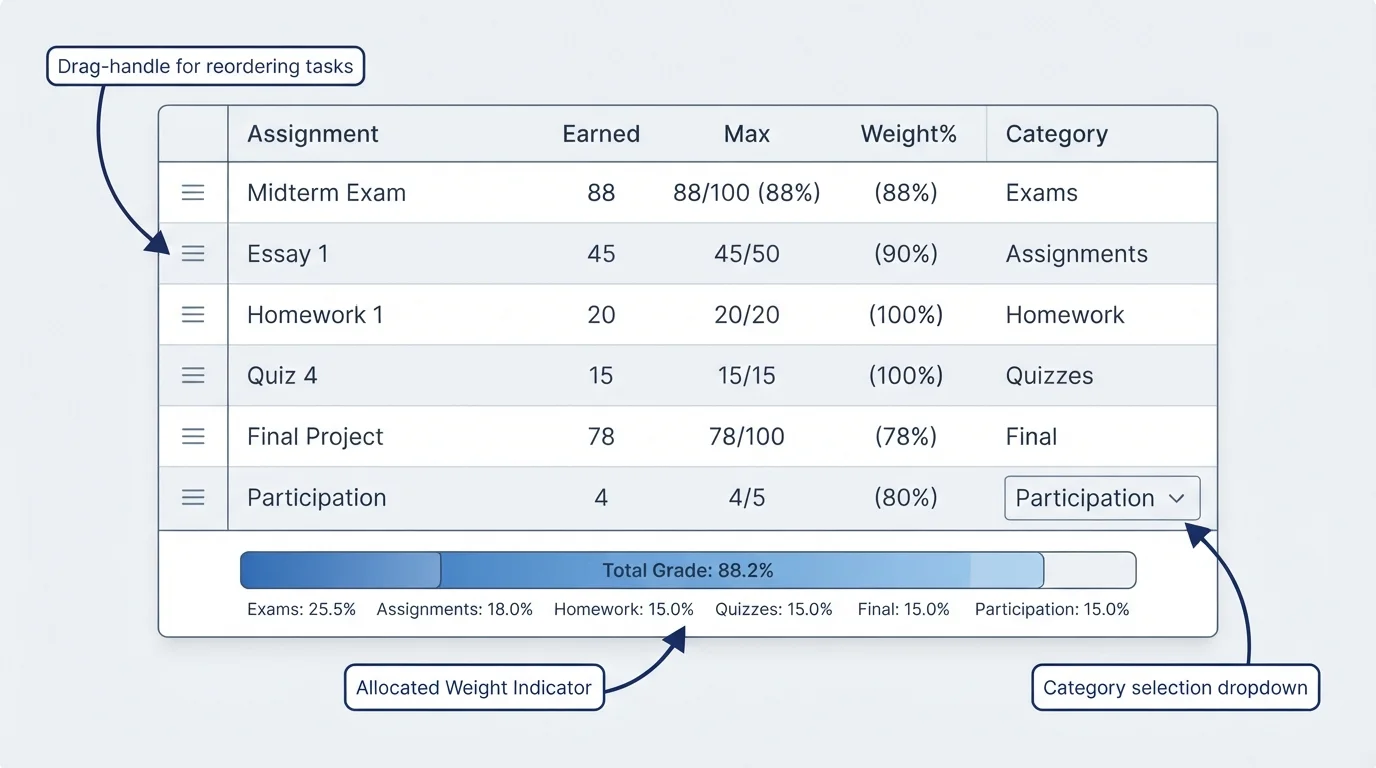
Add every graded item, its weight, and its category. Drag rows to reorder.
| # | Assignment | Earned | Max | Weight % | Category | Notes | Actions |
|---|
Results
Everything below recalculates instantly as you edit the ledger.
Current grade
—
Grade complete
0% completed · 100% remaining
Target grade planner
What‑if analysis
If I score 75% on everything unfinished → projected grade —
Smart insights
Charts
Visualize where your grade is coming from.
Category breakdown
Add assignments with categories to see this chart.
Grade trend
Enter earned scores to see your trend.
Letter grade & GPA scale
The standard 12‑point scale GradeLedger uses. Switch to Custom above to edit these cutoffs.
| Letter | Percent range | GPA (4.0) | GPA (5.0, weighted) |
|---|
Worked examples
Click any example to load it straight into the ledger above.
Weighted Grade Calculator: Find Your Real Course Grade

A 5% quiz and a 40% final exam are not the same grade. Average them like they are, and your real course grade can end up a full letter off from what you actually earned.
Most students open a syllabus, see percentages next to Homework, Quizzes, Midterm, and Final, and average their scores anyway. Then the semester ends and the math doesn’t match the surprise.
This guide walks through the weighted grade formula step by step, shows you how to run a “what do I need on my final” scenario before exam week, and points you to a free calculator built for exactly this.
The formulas below match the weighted grading method used by Canvas, Blackboard, Google Classroom, and most US college syllabi.
What Is a Weighted Grade Calculator?
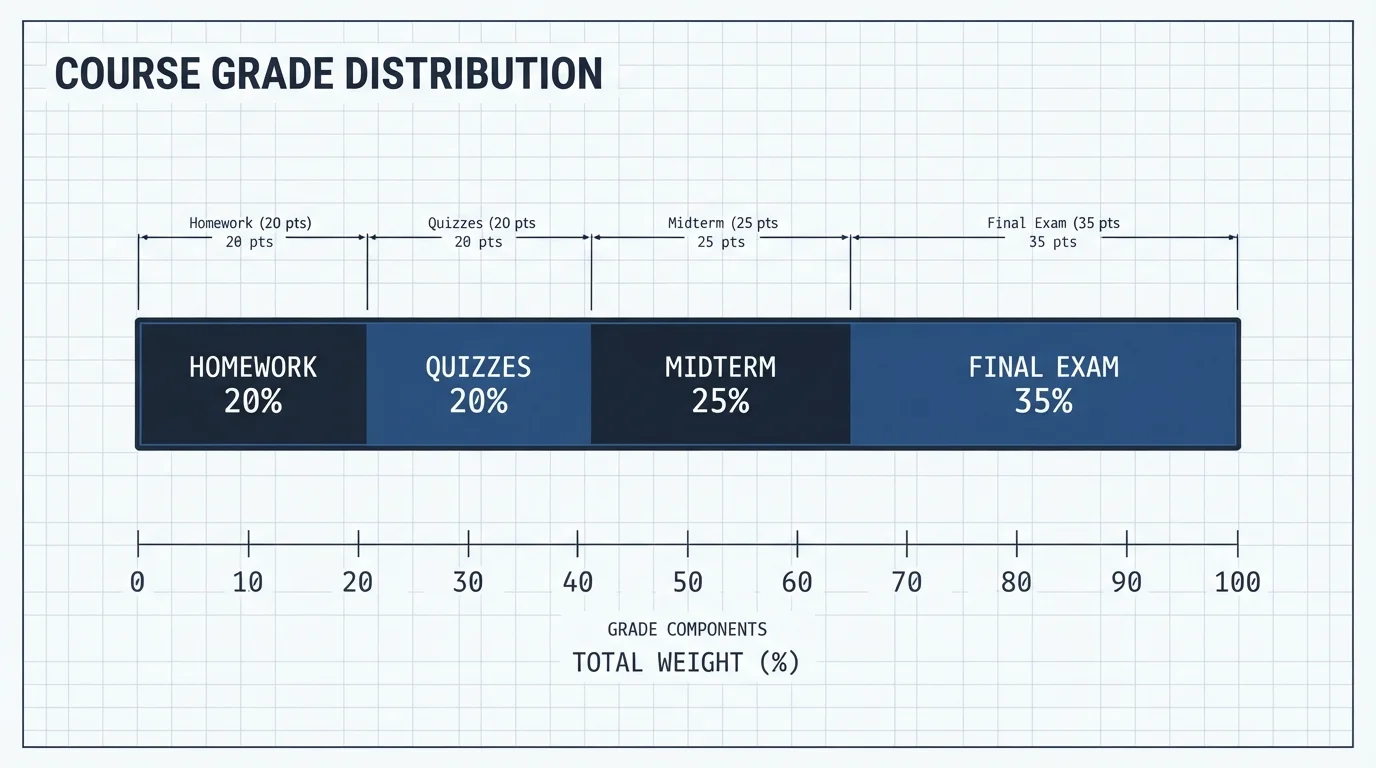
Say your syllabus lists Homework at 20%, Quizzes at 20%, Midterm at 25%, and Final at 35%. A simple average treats all four the same. A weighted grade calculator doesn’t. It multiplies each category score by its listed weight, so the categories that count more actually count more.
This matters most in courses where one exam carries the bulk of the grade. Skip the weighting and you’ll either overestimate how safe your grade is, or panic over a low quiz score that barely moves the final number.
How Do You Calculate a Weighted Grade? (Step-by-Step)
Here’s the formula in action. Say a student has these category scores:
| Category | Weight | Score | Weighted Points |
|---|---|---|---|
| Homework | 20% | 88% | 17.60 |
| Quizzes | 20% | 91% | 18.20 |
| Midterm | 25% | 79% | 19.75 |
| Final Exam | 35% | 85% | 29.75 |
| Total | 100% | — | 85.30% |
Add the weighted points column and you get 85.3%, a solid B. Notice the midterm score (79%) is the lowest input, but it barely dents the final number because it’s only worth a quarter of the grade. That’s the entire point of weighting: low scores in low-weight categories don’t sink you the way they would in a plain average.
What Do I Need on My Final Exam?
Take the same student. Before the final, they’ve locked in Homework, Quizzes, and Midterm, which together are worth 65% of the grade and have earned 55.55 weighted points (17.60 + 18.20 + 19.75). The final is worth the remaining 35%.
If they want an 85% overall:
So they need at least 84.14% on the final. That’s a specific, checkable number, not a vague “study hard and hope” plan. Run this before exam week and you’ll know exactly how much the final actually matters for your grade, which is either reassuring or a wake-up call, depending on the math.
Weighted Grade vs. Weighted GPA: What’s the Difference?
| Term | What it measures | What “weight” means here |
|---|---|---|
| Weighted course grade | One class, one semester | Percentage each assignment category is worth |
| Unweighted GPA | Your whole transcript | Letter grade converted to 4.0 scale, no adjustment for course difficulty |
| Weighted GPA | Your whole transcript | Extra grade points for AP, Honors, or IB courses (often a 5.0 scale) |
If you’re trying to figure out your semester GPA instead of a single course grade, that’s a different calculation involving credit hours. Solvebility’s GPA & CGPA Calculator handles that one, including the US 4.0 scale and several international grading systems.
What If Your Weights Don’t Add Up to 100%?
Mid-semester, this comes up constantly. Say only Homework (20%) and Quizzes (20%) have grades so far, a combined 40% of the course. Add your weighted points for those two categories, then divide by 0.40 instead of 1.0. That gives you your current grade based only on what’s been graded, not a number artificially dragged down by zeros for future assignments.
Common Weighted Grading Mistakes
- Averaging category averages instead of weighting them. Adding up all category percentages and dividing by the number of categories isn’t the same as weighting them by their actual percentages.
- Forgetting extra credit doesn’t usually get its own weight. It typically adds straight points to whichever category it belongs to, not the overall grade.
- Mixing up course grade weighting with GPA credit-hour weighting. These use the word “weighted” but they’re different calculations.
- Ignoring a drop-the-lowest policy. If your instructor drops your lowest quiz, leaving it in your calculation understates your real grade.
- Rounding too early. Round only your final answer, not each category’s weighted points, or small errors stack up.
How the Weighted Grade Calculator Works
Instead of filling in a single formula and getting one static number, the tool is built around a live ledger you keep adding to across the semester. Here’s what it actually does, step by step.
1. Build Your Ledger
Every graded item gets its own row: assignment name, points earned, points possible, weight (%), category (Homework, Quizzes, Exams, and so on), and an optional note. Rows can be dragged into a different order, and a weight-allocated progress bar at the bottom of the table shows how close your entered weights are to 100%, so a syllabus typo is easy to catch before it throws off your grade.
2. Pick How You Want to See Your Grade
A row of toggle buttons switches the display between Percentage, raw Points, Letter grade, GPA on a 4.0 scale, GPA on a 5.0 (weighted) scale, or a Custom scale where you set your own cutoffs. This matters because the underlying math is actually points-based, not percentage-only: the calculator computes score ÷ max × weight for each row, which is the same result as a percentage-based formula but lets you enter raw scores like 47/50 directly instead of converting them yourself.
3. Read Your Results
Three panels update live: a stamped letter grade with your current percentage and GPA underneath it, a progress ring showing what portion of the total weight has been graded versus what’s still outstanding, and a target grade planner. The planner has one-tap presets (A+, A, A−, B+, B−) plus a field for an exact target percentage, and it returns the minimum score you need on your remaining, ungraded weight to hit that target.
4. Run a What-If Scenario
A slider lets you test a hypothetical score across everything you haven’t been graded on yet and see your projected final grade change in real time, which is the fastest way to answer “what happens if I bomb the final” or “do I even need to study for this quiz.”
5. Check the Smart Insights
Below the results, a short insights list flags things worth your attention automatically, such as weights that don’t sum to 100% or categories carrying unusually heavy weight, without you having to spot them manually in the table.
6. Visualize It
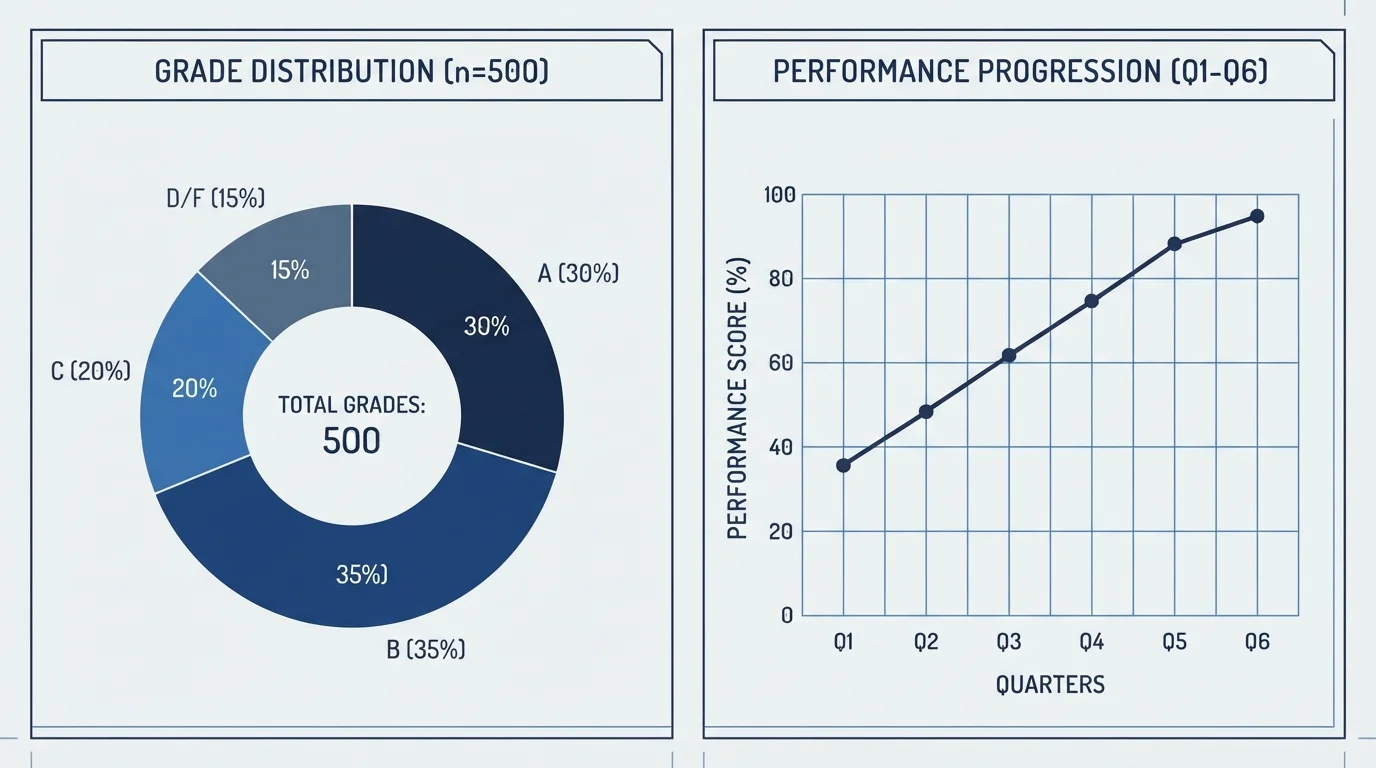
Two charts sit below the results: a category breakdown you can view as a pie, bar, or radar chart, and a grade trend line showing your scores in the order you entered them, so you can see whether your performance is climbing or slipping category by category.
7. Export, Print, or Share
Once your ledger is built, you can download a formatted PDF report, print it directly, copy a text summary of your results, or generate a share link that encodes your entire gradebook into the URL itself, so you can send someone your exact numbers without either of you needing an account.
8. Start From a Worked Example
If you’d rather see it in action first, three preloaded examples are one click away: a standard college course with five categories, a two-exam class with just homework, a midterm, and a final, and a high-school course weighted toward a GPA target. Loading one drops real numbers into the ledger so you can see the formula behave before entering your own syllabus.
9. Nothing Leaves Your Browser
The calculator runs entirely client-side. Your gradebook autosaves to your own device as you type, no account or sign-up is required, and none of your grades are transmitted anywhere, which matters if you’re entering real course data rather than a hypothetical example.
Ready to build your own ledger?
Open the Weighted Grade Calculator GPA & CGPA Calculator
Or browse the full Education Calculators collection.
Frequently Asked Questions
What is a weighted grade calculator?
A weighted grade calculator is a tool that computes your course grade by multiplying each assignment category’s score by its percentage weight and adding the results. It’s built for grading systems where homework, quizzes, and exams don’t count equally.
How does a weighted grade calculator work?
You enter each category from your syllabus (like Homework or Final Exam), its weight as a percentage, and your score in that category. The calculator multiplies score by weight for each row, then adds the totals to give you your course grade.
Why not just average my scores instead?
A plain average treats a 5% quiz the same as a 40% final exam, which doesn’t match how your instructor actually grades. Weighting keeps your calculated grade in line with your real syllabus.
When should I check my weighted grade during the semester?
Check it after every graded assignment, and definitely before a final exam, so you know the minimum score you need to hit your target grade.
Is a weighted grade calculator free to use?
Solvebility’s education calculators, including the GPA & CGPA Calculator and the upcoming Weighted Grade Calculator, are free with no sign-up required.
Weighted grade calculator vs. GPA calculator: what’s the difference?
A weighted grade calculator finds your grade in one class using assignment categories. A GPA calculator finds your average across all your classes using credit hours. They answer different questions.
Is a weighted grade calculator accurate?
It’s as accurate as the weights and scores you enter. The math itself (multiply and sum) is exact; the only source of error is typing in the wrong weight or score from your syllabus.
What if my teacher drops the lowest quiz grade?
Remove that quiz’s score before calculating, since it isn’t counted. If it’s your lowest score in the category, drop it before averaging that category’s scores together.
Does Solvebility’s calculator save my grades anywhere?
No. It runs entirely in your browser and autosaves to your own device only. Nothing you enter is sent to a server, and you can export your gradebook as a JSON or CSV file if you want to move it to another device.
Can I enter raw points instead of converting to a percentage first?
Yes. Each row accepts points earned and points possible directly (like 47 out of 50), and the calculator converts that to a percentage internally before applying the weight, so you don’t have to do that math yourself.
The Bottom Line
A weighted grade calculator won’t change your scores, but it tells you what they actually add up to, which is usually different from a plain average. Once you know your real grade and what you need on what’s left, you can decide where to put your study time instead of guessing.
Build your ledger once, and it keeps doing this math for you all semester. Try the Weighted Grade Calculator, or browse the rest of the education calculator library.
References
- Solvebility Education Calculators — US 4.0 GPA Scale reference table
- Solvebility GPA & CGPA Calculator — international grading scale support
Written by Nouman Ahmed
Civil Engineer • Solar Energy Consultant • Software Developer
Nouman is the founder of Solvebility, with practical experience in solar PV system design, engineering calculations, and calculator development since 2011. This tool was built by Nouman and reviewed by the Solvebility engineering team to verify formulas, assumptions, and calculation accuracy before publication — and is updated whenever industry standards change.